Cow Makeup AI — Make a Cow Makeup Transition Video
Upload one photo for Cow Makeup AI, guided by the built-in 15-second reference. Follow the switch from a plain scarf to cow-print fabric and face paint, then download your MP4.
Upload your photo
Use a clear head-and-shoulders photo of one adult you may depict. The 15-second cow makeup reference is already supplied.
JPG / PNG / WebP · 10 MB · One adult
Aspect Ratio
9:16 — vertical cow makeup video.
Resolution
Cost: … credits
15s · 9:16 · 720p
Check the credit cost before you generate.
15-second cow makeup reference
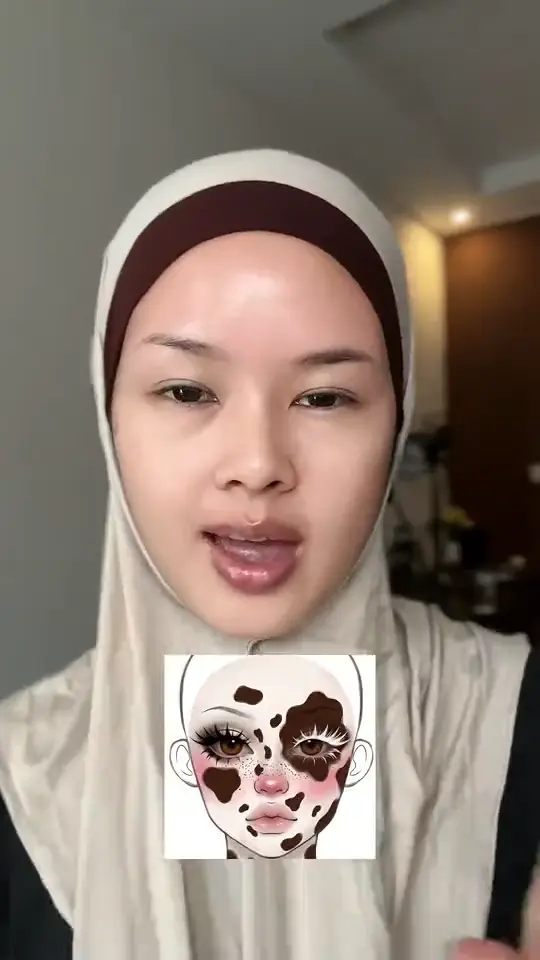
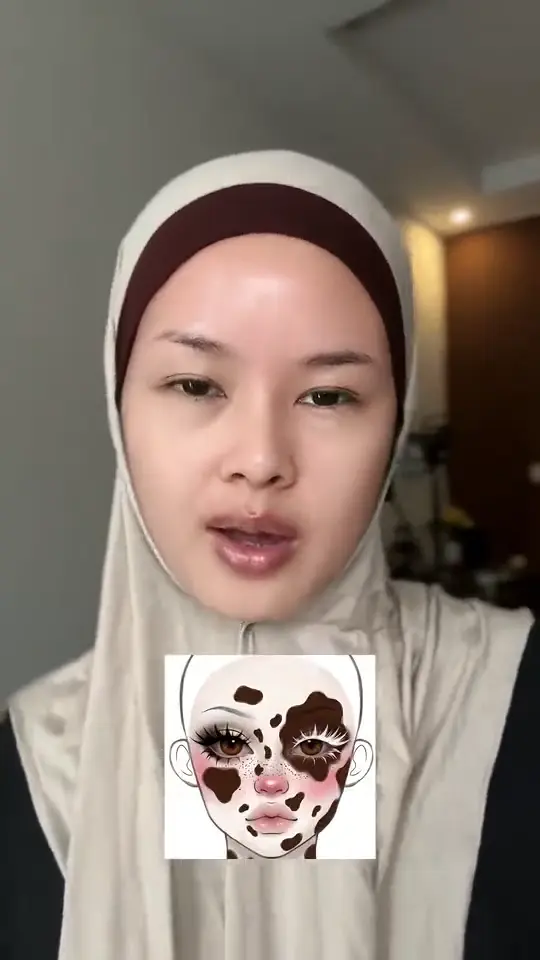
Reference footage supplied for this preset. These preview frames are not results generated from your photo.
THE MAKEUP REVEAL
A cow makeup transition, rather than a single edited photo
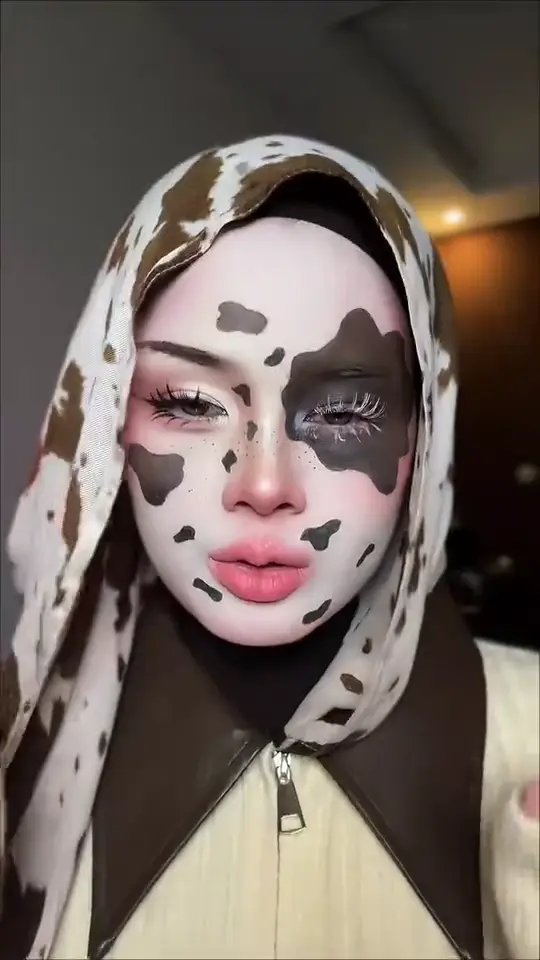
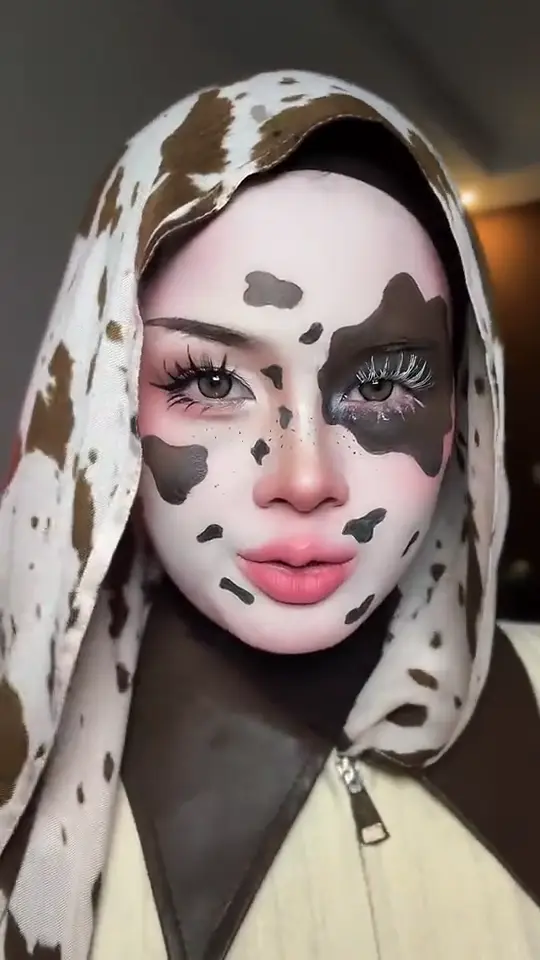
Cow Makeup AI uses a makeup-reveal reference: a person in a plain cream headscarf changes to white-and-brown face paint, a pink nose, white eyelashes, and a cow-print scarf. This version has no horns, animal ears, or bell. A static filter gives you one finished image; the video includes an opening, a cut, and the finished look.
Photo
Your photo supplies the person
Use a photo of yourself or another adult who agreed to appear. Choose one subject with clear facial features. The opening reference frame shown here includes a plain scarf and a cow-face makeup guide; it is not a customer upload or a result made by myaidance. Your selected photo is the separate input used for generation.
Reference
The reference supplies the reveal
The built-in clip guides the camera, gestures, and switch to cow-print face paint and a spotted scarf. You do not need to film a makeup routine or write a prompt. There are no separate controls for the makeup patches or clothing. Watch the reference first: its headscarf styling is part of this preset, so hair may be covered.
Result
The generated result needs a review
Review the first clear face, the cut, and the final cow makeup before sharing your MP4. A patch around one eye and the painted nose can hide recognizable features. The close-up here is another reference frame, not a generated customer result. Check your own video rather than assuming the reference proves identical detail or likeness.
HOW IT WORKS
How the Cow Makeup AI preset uses your photo
This workflow combines a photo, a fixed reference video, and a preset instruction using Wan 2.7 Video Edit. Your image is uploaded for server-side and third-party AI processing. It is not processed entirely inside your browser.
1
2
3
Choose a clear photo
Add one JPG, PNG, or WebP up to 10 MB. Choose a clear, front-facing adult portrait with the face and shoulders visible. Avoid sunglasses, face stickers, or hands over the eyes. No second video upload is required.
Check the preview and credit quote
Watch the reference, then read the quote for 15 seconds at 720p and vertical 9:16. Sign in before generating. The credit number on the button is the price to check; the signup balance may not cover it.
Generate, inspect, and download
Generate after the reference and cost are available. Play the result through, inspect the makeup and face, then download the MP4. Processing time varies. If the task continues in the background, check History. Choosing a photo does not itself start a generation.
PHOTO CHECKLIST
Give the face enough detail for the makeup reveal
These checks help you choose a readable source image for Cow Makeup AI. They are starting points, not a guarantee of a particular result.
Keep the eyes and face visible
Choose a sharp picture with even light. Avoid a strong side profile, dark glasses, or shadows that hide half the face. The clearer the source, the easier it is to judge whether the generated person still resembles it.
Use a simple photo of one person
Skip group shots and face stickers. A second person or an overlay can introduce unwanted details. This reference is framed around the head and shoulders; a distant full-body picture leaves less face detail to work with.
Choose an adult who agreed to appear
Use your own picture or one you have permission to animate. This preset is for adult portraits. Do not upload a child's photo, and do not present a generated transformation as a recording of someone actually wearing the makeup.
WHAT TO MAKE
Make the cow makeup reveal your own
Cow Makeup AI keeps the room, scarf styling, and reveal timing from the reference. Your photo supplies the subject. The images in this section are reference frames, not examples of customer generations.
Explore a cow-print reveal from a photo without preparing a makeup kit. The reference changes the scarf and face paint together.
BEFORE YOU GENERATE
What the reference controls and what can change
Cow Makeup AI follows this fixed 15-second reference, including its headscarf, room, and makeup change. It does not provide separate controls for each detail. Output settings are 720p and vertical 9:16; the source reference is 540 by 960 pixels. A different crop or face can change how well the reveal reads.
The reference contains an audio track. No specific song or exact lip synchronization is promised in the generated result. A preview starting muted does not establish the sound in your download. Listen to the finished MP4 and use music you may share. The preview itself is reference footage, not a result generated from your photo.
Faces, hands, and makeup edges can shift at the cut. Heavy paint may reduce resemblance. Inspect several frames before posting. The privacy policy covers uploaded content; this page adds no separate deletion schedule. Check the current terms before commercial use.
Cow makeup video questions
Photo inputs, generation availability, credits, sound, and the limits of Cow Makeup AI.
Return to the Cow Makeup AI preset
Watch the reference, choose a clear adult portrait, and check the credit cost. Review the makeup reveal and audio before sharing your downloaded MP4.